¶ Print a report through a server printer
¶ Overview
Server printing lets you send a report to an approved printer without installing or configuring that printer in your browser session. The report is placed in a central print queue and printed by the QWIX Print Worker.
Only printers assigned to your Qwix user account are available for selection.
¶ Print a report
- Open the required portal view.
- Select Reports on the RAD button bar.
- Select the required report. Qwix opens the report preview in a new browser tab.
- Review the report and confirm that it contains the expected information.
- Select Print via Print-server on the report-preview toolbar.
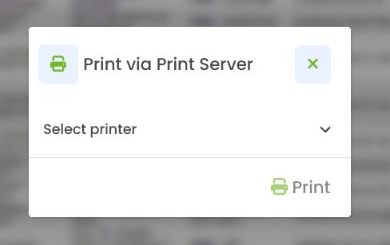
- Select a printer in the dialog. The Print button becomes available after a printer has been selected.
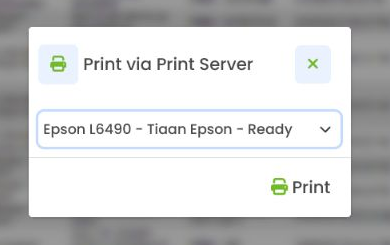
- Select Print once.
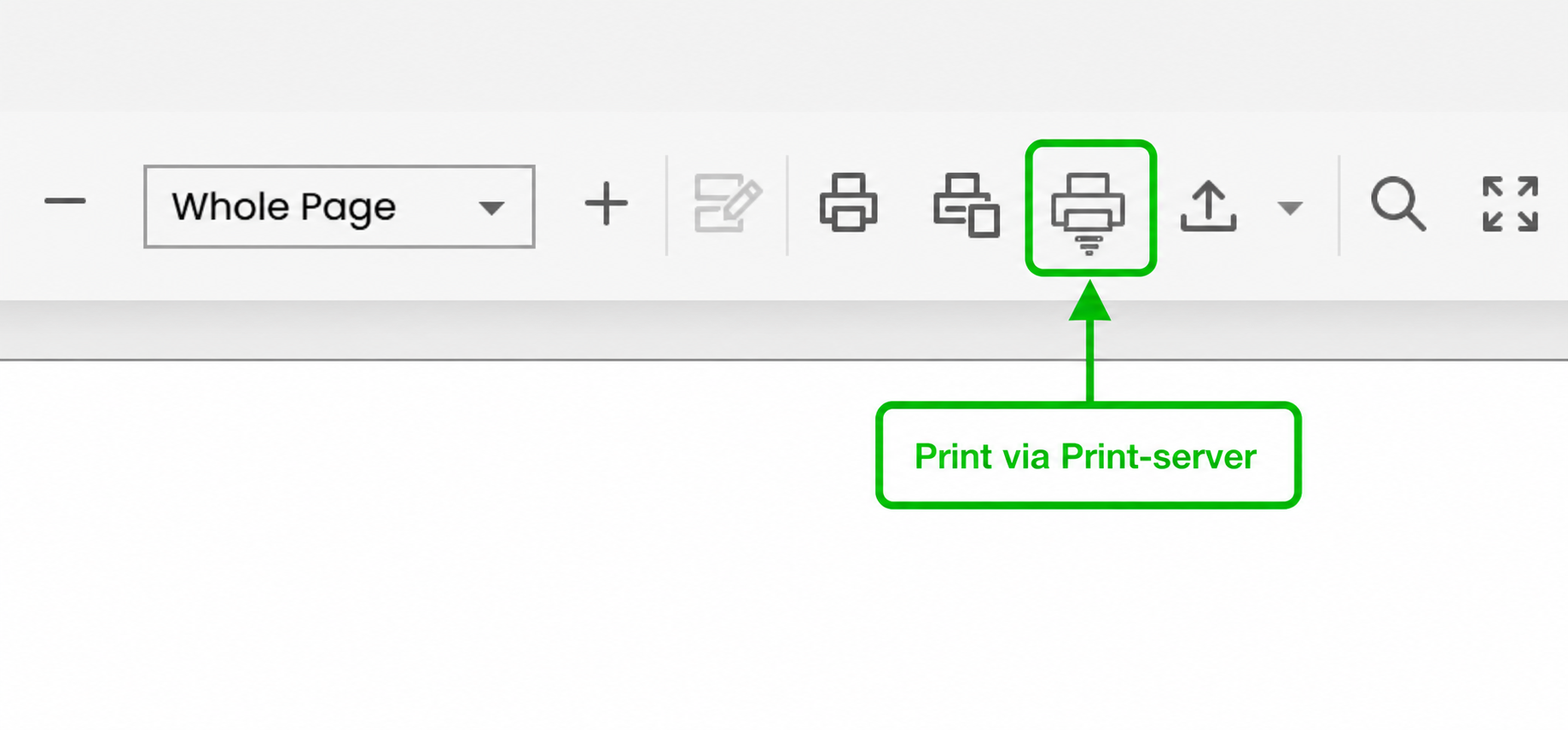
The printer-selection dialog opens with Print disabled. Selecting an available printer enables it.
After a printer is selected, the dialog shows its name, description, and current status, and the Print button becomes available.
The available-printer list is loaded when the report preview opens. If an administrator grants you access while the preview is already open, close the preview tab and open the report again before checking the list.
Qwix queues the rendered report for the selected printer. You may close the report preview after the job has been accepted.
Selecting Print places the report in the queue. Repeatedly selecting it creates additional print jobs and may produce duplicate printouts.
¶ Server printing compared with normal printing
The standard Qwix print controls print through the browser and the computer you are currently using. Print via Print-server sends the report to a centrally configured printer through the QWIX Print Worker.
Use server printing when:
- the printer is managed centrally;
- the printer is not installed on your computer;
- a warehouse, label, or office printer must be shared by several users; or
- the print job must remain visible in the Qwix job history.
¶ If a printer is not listed
Ask a portal administrator to check that:
- the printer is enabled;
- your Qwix user has access to it;
- the correct print worker is running; and
- the printer is installed and available to the worker's Windows service account.
If access was added recently, close the report preview and reopen the report to refresh the printer list.
See Operations and troubleshooting for further checks.