¶ Configure server printers and user access
¶ Audience
This page is intended for Qwix portal administrators. Printer installation on the Windows print server is covered in Install and configure the QWIX Print Worker.
¶ Open the Server Printers view
In the portal navigation menu, go to Configuration > Server Printers.

The main grid shows:
| Field | Meaning |
|---|---|
| Name | Exact Windows printer name used by the print worker. |
| Description | Friendly description that helps administrators identify the printer. |
| Server | Worker name responsible for this printer. It must exactly match PrintWorker:Name in the worker configuration. |
| Enabled | Determines whether the printer can be used by the worker. |
| Status | Most recently detected printer status. |
| Date Last Print | Most recent time a job was successfully submitted to this printer. |
¶ Add a printer
- Open Actions.
- Expand Server Printers.
- Select Add.
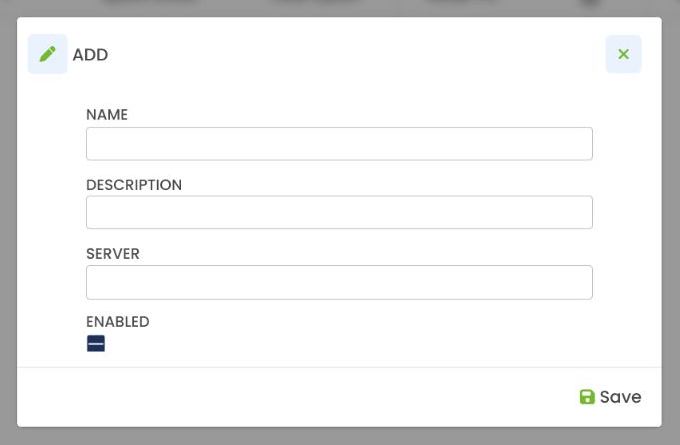
- Complete the printer details.
- Leave Enabled selected if the printer should be available immediately.
- Select Save.
¶ Required values
Name must match the Windows printer name visible to the worker service account. This is the name passed to the Windows print spooler, so a friendly alias will not work unless the printer is installed under that alias.
Server is the logical worker name, not necessarily a DNS name. It must match the worker's configured PrintWorker:Name, including spaces and punctuation.
¶ Edit a printer
- Select the printer in the main grid. The Edit action is unavailable until a row is selected.
- Open Actions.
- Expand Server Printers.
- Select Edit.
- Update the required values.
- Select Save.
Take care when changing these fields:
- Changing Name changes the Windows printer to which jobs are submitted. The new value must exactly match a printer visible to the worker service account.
- Changing Server assigns the printer to a different worker. The new value must exactly match that worker's
PrintWorker:Namesetting. - Clearing Enabled prevents the worker from claiming new jobs for the printer.
¶ Disable a printer
Disable a printer when it is temporarily unavailable, being replaced, or should no longer receive new jobs but its configuration and history must remain available.
- Select the printer in the main grid.
- Open Actions > Server Printers > Edit.
- Clear Enabled.
- Select Save.
¶ Remove a printer
- Select the printer in the main grid. The Remove action is unavailable until a row is selected.
- Open Actions.
- Expand Server Printers.
- Select Remove.
- Confirm the removal if Qwix requests confirmation.
Remove a printer only when its Qwix configuration is no longer required. This is different from uninstalling the printer in Windows. Prefer disabling the printer when an outage is temporary, related job history must remain available, or the printer may be used again.
¶ Give a user access to a printer
- Expand the required printer row.
- Open the Users tab.
- Open Actions and expand Users.
- Select Add.
- Select the Qwix user and save the change.
Remove the user from this tab to withdraw access. Printer access affects the list shown in the server-print dialog; it does not install the printer on the user's computer.
The server-print dialog loads printer access when the report preview opens. If access is added or removed while a user already has a preview open, ask the user to close that preview tab and open the report again.
¶ View job history
Expand a printer and select Job History. The history includes the report, requesting user, creation and print dates, current status, worker that claimed the job, attempt count, and the latest error where applicable.
Common states are explained in Operations and troubleshooting.