¶ Reports overview
Reports present Qwix information in a formatted document that can be reviewed, printed, or exported. Reports are configured for specific portal views, so the available reports depend on the view, the current user’s access, and sometimes the selected row.
¶ Open a report from a view
- Open the portal view that contains the information you need.
- If the report relates to one record, select the required row in the grid.
- Select Reports on the button bar.
- Select a report group, if one is shown.
- Select the required report.
The Tickets view, for example, provides several reports under Ticket Management.
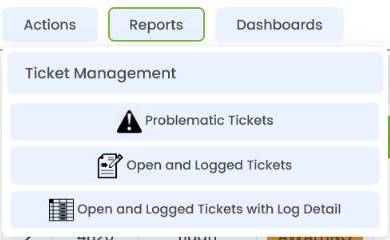
The reports available in another view may be different. If Reports is not shown, or the required report is not listed, it has not been configured for that view or your user does not have access to it.
¶ Reports and the selected row
Some reports use the selected row as their context. For example, a report opened from an order, ticket, or stock record may show information for that record only.
Before opening this type of report:
- Confirm that the correct row is selected.
- Open Reports and select the report.
- Check the report title and contents in the preview before printing or exporting it.
Other reports summarise the entire view or obtain their data independently and do not require a selected row.
¶ Reports without parameters
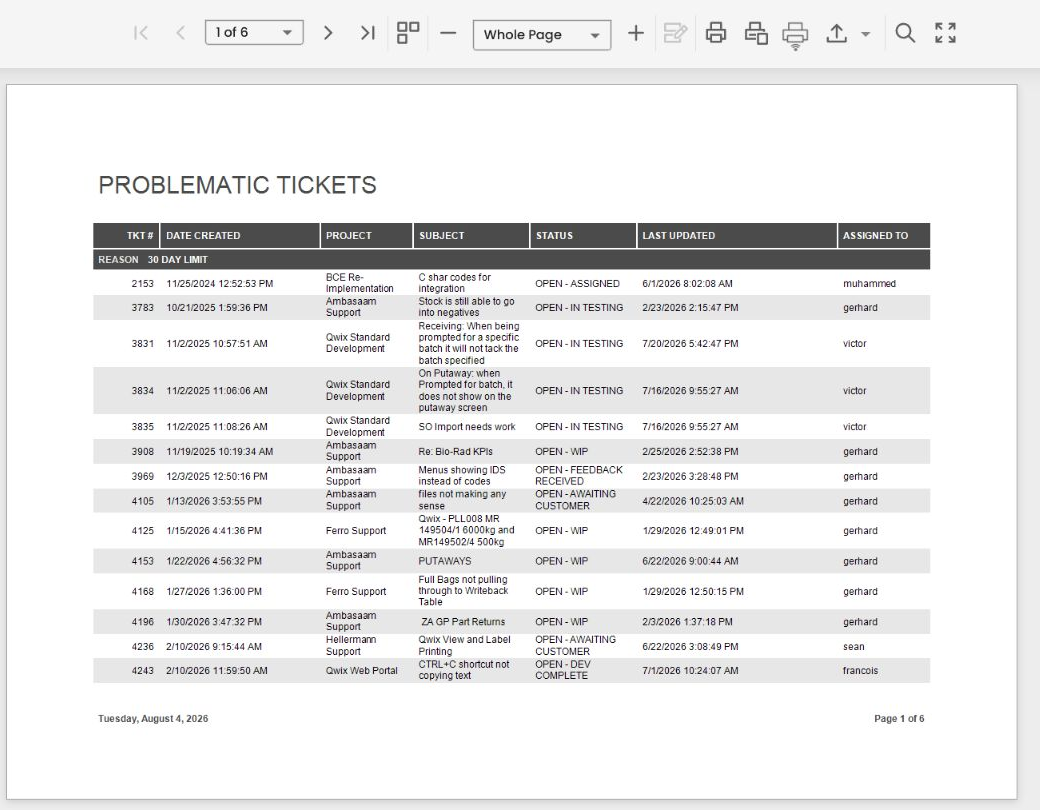
A report that does not need additional information opens directly in a new report-preview tab. Problematic Tickets in the Tickets view is an example.
¶ Reports with parameters
Some reports require information such as a date range, customer, site, status, or other filter before Qwix can create the document. The report preview displays Preview Parameters and waits for the required values.
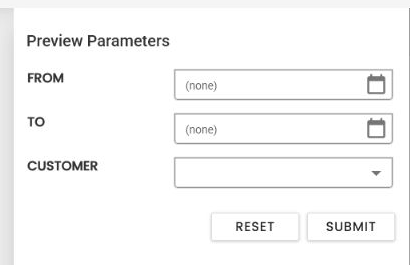
- Enter or select the required values.
- Select Submit.
- Wait for Qwix to generate the report.
- Review the result before printing or exporting it.
Select Reset to clear the entered values. The available parameters and whether they are required are determined by the report.
¶ Use the report preview
The preview toolbar provides the standard Qwix report controls.

From left to right, the available controls may include:
- first, previous, next, and last page navigation;
- the current page and total page count;
- single-page or multipage display;
- zoom out, zoom level, and zoom in;
- print the full report;
- print the current page;
- export the report;
- search within the report; and
- full-screen view.
Some controls are unavailable while a report is loading or waiting for parameters.
¶ Print through the browser
To use the normal print workflow:
- Review the report and navigate to the required page if necessary.
- Select Print to print the complete report, or Print Page to print only the current page.
- In the browser or operating-system print dialog, choose the printer and required settings.
- Confirm the print.
This workflow prints from the device and browser you are currently using. The available printers and print options are therefore determined by that device.
¶ Print through a Qwix server printer
Where server-based printing is enabled, the preview also provides Print via Print-server. This sends the rendered report to a centrally managed printer through the Qwix print queue instead of the current device’s normal browser-printing workflow.
See Server-based report printing for the user workflow, printer configuration, worker installation, and troubleshooting guidance.
¶ Export a report
Open Export To and select one of the formats configured for the report. Your browser downloads the exported file. Available formats and options can vary by report.
¶ Close the preview
Reports open in a separate browser tab. Close the report-preview tab when you have finished and return to the original portal view.