¶ Dashboards overview
Dashboards combine summary values, charts, gauges, and data grids into a visual view of Qwix information. Dashboards are configured for specific portal views, so the available dashboards depend on the current view and the user’s access.
¶ Open a dashboard from a view
- Open the portal view related to the information you want to analyse.
- If the dashboard is designed for one record, select the required row in the grid.
- Select Dashboards on the button bar.
- Select a dashboard group, if one is shown.
- Select the required dashboard.
The Tickets view provides TICKET STATS under Live Dashboards.
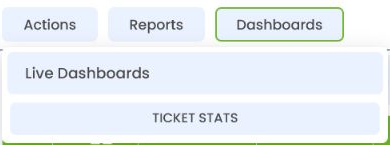
The dashboard opens in a new browser tab. If Dashboards is not shown, or the required dashboard is not listed, it has not been configured for that view or your user does not have access to it.
¶ Dashboard context and parameters
Dashboards can obtain their context in different ways:
- a view-level dashboard summarises information independently of the selected row;
- a row-level dashboard uses the record selected in the portal view; or
- a parameterised dashboard asks the user for values such as dates, customer, site, or status before loading.
When a dashboard depends on a selected row, confirm that the correct row is selected before opening it. When parameters are displayed, enter the required values and submit them to load the dashboard.
The TICKET STATS example opens directly and presents an overall view of current support activity.
¶ Use a dashboard
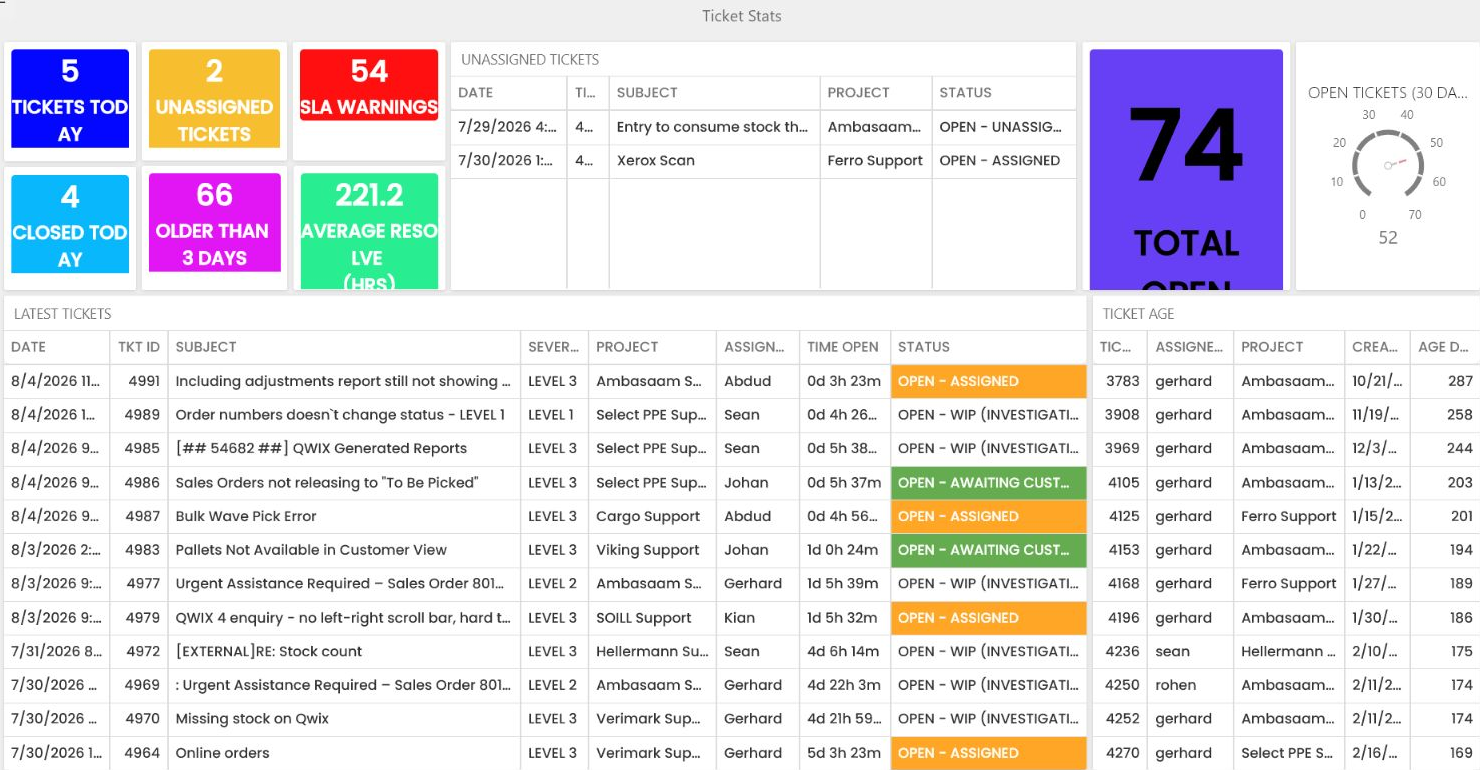
A dashboard may contain:
- summary tiles showing important totals or measures;
- charts and gauges showing comparisons or progress;
- data grids containing the records behind a summary; and
- colours that highlight statuses, warnings, or exceptions.
Read each component’s title together with its value. For example, the Ticket Stats dashboard separates current totals, unassigned tickets, recent tickets, service-level warnings, and ticket age.
Depending on how a dashboard was designed, selecting a chart segment, grid row, or filter may narrow other components. Select the same value again or use the dashboard’s clear/reset option to remove an interactive filter where one is available.
¶ View detailed data
Dashboard grids can provide the records behind a headline value. Use the grid headers and scrollbars to review the available columns. If a dashboard item supports drill-down or drill-through, select the relevant value to open the next level of detail.
The exact interactions available are determined by the dashboard configuration.
¶ Export dashboard information
Where export is enabled, open the menu for the dashboard or individual dashboard item and select the required export option. The available formats depend on the item and dashboard configuration and may include image, PDF, spreadsheet, or data formats.
If no export option is shown, exporting has not been enabled for that dashboard item.
¶ Close the dashboard
Dashboards open in a separate browser tab. Close the dashboard tab when you have finished and return to the original portal view.